Navigating Roblox Studio can be a deeply rewarding experience for creators, but disorganized scripts often lead to frustration, wasted time, and complex debugging. This comprehensive guide addresses the vital process of how to rename script Roblox, offering practical, step-by-step instructions and best practices to streamline your development workflow. For US gamers balancing jobs, families, and creative endeavors, efficient asset management within Roblox Studio is not just a convenience, it's a necessity. Learn why proper script renaming is critical for project clarity, collaboration, and maintaining game performance. We will dive into the nuances of effective script organization, ensuring your projects remain manageable and enjoyable, ultimately enhancing your Roblox development journey and allowing more time for the gameplay you love.
What is the primary benefit of renaming scripts in Roblox Studio?
The primary benefit of renaming scripts in Roblox Studio is improved organization and clarity, which directly leads to faster debugging, easier code maintenance, and more efficient collaboration. Instead of deciphering generic 'Script' labels, descriptive names allow you to instantly understand a script's function, saving valuable time for busy gamers who juggle development with daily life.
How do I quickly rename a script in Roblox Studio?
To quickly rename a script in Roblox Studio, simply select the script in the Explorer window and press the F2 key on your keyboard. Alternatively, you can right-click the script and choose 'Rename' from the context menu, or perform a slow double-click on its name to make it editable. Type your new, descriptive name and press Enter.
Why is descriptive naming important for Roblox scripts?
Descriptive naming is important for Roblox scripts because it immediately communicates the script's purpose. For example, 'PlayerHealthHandler' instantly tells you what the script does, unlike a generic 'Script'. This clarity is vital for personal projects and essential for team collaboration, reducing confusion and speeding up development, especially for adult gamers with limited creative time.
Can renaming a script break my game?
Renaming a script itself usually won't break your game directly. However, if other scripts in your game reference the renamed script by its OLD name in your Lua code (e.g., `workspace.OldScriptName`), those references will break. You MUST manually update any such hardcoded references in your code to the script's new name to prevent runtime errors and ensure functionality.
What are some good naming conventions for Roblox scripts?
Good naming conventions for Roblox scripts include using descriptive, concise names (e.g., 'DoorToggle' instead of 'Script'), employing CamelCase (e.g., 'playerController') or PascalCase (e.g., 'GameDataHandler'), and avoiding spaces or special characters. Consistency is key; choose a convention and apply it uniformly across your entire project to maintain clarity and ease of navigation.
Should I rename scripts I get from the Roblox Toolbox?
Yes, it is highly recommended to rename scripts obtained from the Roblox Toolbox or free models. These scripts often come with generic or unhelpful names. Renaming them to reflect their specific function in your game (e.g., 'FreeModel_CarSpawner' or 'Tool_GrapplingHook') helps integrate them into your project's organized structure and makes future maintenance much easier.
How does proper script organization save time in debugging?
Proper script organization, starting with effective renaming, significantly saves time in debugging by making it easy to identify the source of an issue. When an error message points to a script, a descriptive name (like 'InventoryManager') immediately guides you to the problematic code, rather than having to guess which generic 'Script' is causing the problem. This efficiency is crucial for busy developers.
Hey fellow gamers and creators! Ever find yourself staring at a wall of 'Script', 'Script1', 'Script2' in Roblox Studio, wondering which one controls that pesky door or that awesome power-up? You are not alone. For many of us who balance a passion for gaming and creation with real-world responsibilities like jobs and families, time is a precious commodity. Wasting it digging through poorly named scripts is not just annoying, it's a drain on our limited creative energy.
As US gamers, we spend an average of 10+ hours a week in our digital worlds, and for a significant 87% of us, gaming is a regular part of our routine. Roblox, with its booming creator economy and social engagement, offers an incredible platform for both play and development. But to truly enjoy the development side and create those captivating experiences, efficiency is key. That's where learning to properly rename script Roblox comes into play. It's not just about tidiness; it's about optimizing your workflow, making debugging a breeze, and even making collaboration with others smoother than a perfectly executed combo move.
This guide is your tactical brief to mastering script renaming in Roblox Studio. We'll cut through the fluff and provide actionable steps, best practices, and insights to help you build better, faster, and with less stress. Think of it as upgrading your gaming rig, but for your Roblox development skills. Let's make your scripts work for you, not against you, so you can spend more time enjoying the games and less time untangling digital spaghetti.
What is "rename script Roblox" and why is it crucial for creators?
Renaming a script in Roblox Studio simply means changing the identifying text label of a Lua script file within your game's explorer window. Instead of generic names like "Script" or "LocalScript", you assign a descriptive, meaningful name that clearly indicates its purpose or functionality. This seemingly small act is absolutely crucial for any serious Roblox creator because it dramatically improves the readability, maintainability, and debuggability of your project. Imagine trying to find a specific part in a vast inventory without proper labels; it's the same principle for your game's code.
For adult gamers, who often have limited time for their hobbies, efficiency is paramount. Proper script naming reduces the cognitive load, allowing you to quickly understand what each script does at a glance. This saves valuable minutes, if not hours, when you return to a project after a break or when troubleshooting an issue. It's a foundational step towards professional-grade development, even if you're just building for fun or sharing with friends. In a landscape where social gaming and collaborative experiences are trending this month, clear script naming also becomes vital for team projects, ensuring everyone understands the codebase.
How do I rename a script in Roblox Studio step-by-step?
Renaming a script in Roblox Studio is a straightforward process, but it's essential to follow the steps correctly to avoid any hiccups. Here's a clear, numbered guide:
- Open Roblox Studio: Launch Roblox Studio and open the place (game) containing the script you wish to rename.
- Locate the Explorer Window: On the left or right side of your Studio interface, find the 'Explorer' window. This window displays a hierarchical list of all objects, parts, and scripts in your game.
- Navigate to the Script: In the Explorer, expand the containers (like 'Workspace', 'ServerScriptService', 'StarterPlayer', etc.) until you find the specific script you want to rename. Click on it once to select it.
- Initiate Rename Action: There are a few ways to do this:
- Right-Click: Right-click on the selected script. A context menu will appear. Select 'Rename' from the options.
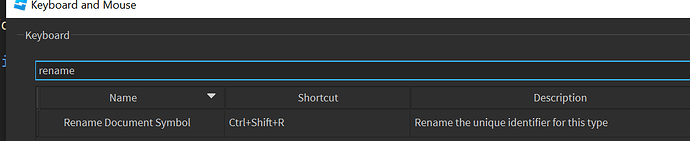
- F2 Key: With the script selected, press the F2 key on your keyboard. This is a common shortcut for renaming files and objects in many applications.
- Slow Double-Click: Click the script once to select it, then click it again after a short pause (don't double-click quickly, as that will open the script). This will make the name editable.
- Type the New Name: The script's current name will become highlighted and editable. Type in your desired new name. Remember to choose something descriptive and concise.
- Confirm the Rename: Press the 'Enter' key on your keyboard or click anywhere outside the script's name field to confirm the new name.
That's it! Your script now has its new, descriptive name. Always save your place after making changes to ensure they are preserved.
What are the best practices for naming Roblox scripts?
Effective script naming goes beyond just giving it a different label; it's about adopting conventions that boost clarity and efficiency. Think of it like organizing your game library – specific genres and titles make it easy to find what you want. Here are some best practices that experienced developers swear by:
- Be Descriptive: The name should immediately convey the script's primary function. Instead of 'Script', use 'PlayerHealthHandler', 'DoorOpenerModule', or 'CoinCollectionSystem'.
- Use CamelCase or PascalCase: These are common programming conventions. CamelCase starts with a lowercase letter and capitalizes the first letter of each subsequent word (e.g., 'playerSpawnController'). PascalCase capitalizes the first letter of every word (e.g., 'NPCBehaviorManager'). Choose one and stick to it for consistency.
- Avoid Spaces and Special Characters: While Roblox Studio often allows spaces, it's best practice in programming to avoid them in names, as they can sometimes cause issues or look less professional. Stick to alphanumeric characters.
- Prefix or Suffix for Type/Location: Consider adding a prefix or suffix to indicate the script's type or where it's located. For example, 'Client_UIController' for a LocalScript or 'Server_GameLoop' for a Server Script.
- Keep it Concise: While descriptive, avoid overly long names. Strive for clarity without verbosity. 'ManagePlayerStats' is better than 'ScriptThatManagesAllPlayerStatistics'.
- Be Consistent: This is perhaps the most important rule. Whatever naming convention you choose, apply it uniformly across all your scripts in a project. Consistency drastically reduces confusion when working on larger games or collaborating.
Adhering to these practices will transform your messy script list into an organized, navigable directory, saving you countless hours of searching and debugging.
Why should I bother organizing my Roblox scripts?
Organizing your Roblox scripts is a game-changer, especially for busy adults who juggle gaming with work and family. It's not just about aesthetics; it's about efficiency, mental clarity, and reducing frustration. Imagine coming back to a project after a week-long break: if your scripts are haphazardly named and scattered, you'll spend precious gaming time just re-familiarizing yourself with your own code.
Proper organization, starting with thoughtful script renaming, turns your development environment into a well-oiled machine. It significantly speeds up debugging because you can instantly pinpoint which script is likely causing an issue. Need to adjust the jump height? You know exactly to look for 'PlayerJumpHandler' instead of sifting through ten generic 'Script' files. This efficiency directly translates to more time for actual gameplay, socializing with friends in your favorite virtual worlds, or even spending quality time offline. In a 2024 gaming trend report, 60% of US gamers noted that ease of use and quick learning curves were crucial for engaging with new games and tools, highlighting the value of an organized workflow.
Can renaming scripts affect my game's performance or functionality?
Generally, simply renaming a script in Roblox Studio will NOT directly affect your game's performance or functionality. When you rename a script, Roblox Studio automatically updates any references to that script in the background, especially if the references are within the same script hierarchy (e.g., a parent script referencing a child script by name). The script's content, its parent-child relationships, and its execution environment remain unchanged.
However, there's a critical caveat: if you are referencing a script by its name directly within another script using `game.Workspace.MyScript` or `script.Parent.MyScript`, you MUST update these references manually in your Lua code. If you rename `MyScript` to `PlayerController` but your other script still tries to find `MyScript`, it will result in an error, and the functionality tied to that script will break. Roblox Studio tries to handle common cases, but explicit code references require your attention. Always double-check any script that might be looking for another script by name after you perform a rename, especially in larger, more complex projects. This is a common pain point for developers and requires a quick check to prevent runtime errors.
Are there any advanced tips for managing multiple scripts efficiently?
Managing multiple scripts efficiently goes beyond just renaming; it involves structural and architectural choices that pay dividends as your game grows. For those who balance gaming with a demanding career, optimizing your development time is crucial. Here are some advanced tips:
- Group Related Scripts into Folders: Use folders (or even Models) within services like `ServerScriptService`, `StarterPlayerScripts`, or `Workspace` to categorize scripts by function. For instance, a 'UI' folder for all client-side UI scripts, or an 'Abilities' folder for player abilities.
- Utilize ModuleScripts: For reusable code or complex systems, learn to use ModuleScripts. These act like libraries of functions that other scripts can 'require' and use. This promotes code reusability, reduces redundancy, and makes updates much easier, as you only change the code in one place.
- Implement a Consistent Hierarchy: Decide on a logical place for different types of scripts and stick to it. Server-side logic usually goes in `ServerScriptService`, client-side UI logic in `StarterPlayerScripts` (specifically `StarterPlayer/StarterPlayerScripts/StarterGuiScripts`), and scripts directly tied to objects in `Workspace` within those objects.
- Use Remote Events/Functions for Communication: When scripts need to communicate across client and server boundaries, use `RemoteEvents` and `RemoteFunctions`. This keeps your scripts decoupled and prevents messy direct references, making your system more robust and easier to manage.
- Version Control (Git/Roblox Team Create): For larger projects or collaboration, consider using external version control systems like Git or leveraging Roblox's built-in Team Create. This allows for safe experimentation, easy rollback of changes, and seamless collaboration without worrying about overwriting each other's work. It's like having multiple save slots for your entire project.
Adopting these strategies means less time spent debugging and more time creating amazing game experiences that stand out in the competitive Roblox landscape.
How does proper script naming impact collaboration in Roblox?
Proper script naming is the unsung hero of successful collaboration in Roblox development. Imagine working on a game with friends or a larger team: if every script is generically named, or worse, named inconsistently, communication breaks down almost immediately. One developer might assume 'GameLoop' refers to the main game progression, while another might use it for a round-based system.
With clear, descriptive names like 'Server_RoundManager', 'Client_UIManager', or 'NPC_PathfindingService', every team member instantly understands the purpose of each script. This shared understanding minimizes misinterpretations, speeds up task assignment, and drastically reduces the 'what does this do?' questions that plague unorganized projects. It's like having a clear playbook for your esports team; everyone knows their role and the function of each component.
For US gamers, who often enjoy social play and online communities (a major trend this month), the ability to seamlessly collaborate on projects is a huge draw for Roblox. Well-named scripts foster an environment of efficiency and mutual respect, allowing teams to build complex, engaging experiences without the friction of a chaotic codebase. This leads to a more enjoyable and productive development process for everyone involved.
What common mistakes should I avoid when renaming Roblox scripts?
Even a simple task like renaming scripts can lead to pitfalls if you're not careful. Avoiding these common mistakes will save you headaches and prevent unexpected issues in your Roblox games:
- Forgetting to Update Code References: This is the number one mistake. As mentioned earlier, if you manually reference a script by its old name in another script (e.g., `workspace.OldScriptName`), you absolutely must update that line of code to the new name (e.g., `workspace.NewScriptName`). Failing to do so will result in `nil` errors and broken functionality.
- Using Generic Names Repeatedly: Continuously naming new scripts 'Script' or 'LocalScript' defeats the purpose of organization. Always give a new script a descriptive name from the outset.
- Inconsistent Naming Conventions: Switching between CamelCase, PascalCase, or even using underscores inconsistently can make your project look messy and harder to navigate. Pick a convention and stick to it for all scripts.
- Using Spaces or Special Characters in Names: While Roblox Studio often tolerates spaces, it's generally best practice in programming to avoid them. They can sometimes cause unexpected issues or make future scripting more cumbersome. Stick to alphanumeric characters.
- Renaming Core Roblox Scripts: Avoid renaming scripts that are part of Roblox's core engine or objects (e.g., the default 'Animate' script in StarterCharacterScripts). Doing so can break fundamental game mechanics. Focus on the scripts you create.
- Not Saving Your Place: After making significant changes like renaming multiple scripts, always remember to save your Roblox place. It’s a simple step that prevents losing your progress.
By being mindful of these common errors, you can ensure your script renaming process is smooth and beneficial to your project's health.
How can consistent script naming save me time and effort in the long run?
Consistent script naming is an investment that pays massive dividends in time and effort, especially for gamers who need to maximize their creative output within limited schedules. Think of it as setting up hotkeys and macros for your favorite game – a small effort upfront for massive efficiency gains later.
Firstly, it drastically reduces debugging time. When an error occurs, the debugger often points to a script by name. If that name is 'PlayerHealthHandler', you instantly know where to look. If it's 'Script37', you're in for a frustrating scavenger hunt. Secondly, it accelerates feature development. Want to add a new ability? You can quickly locate your 'AbilitySystemManager' or 'PlayerInputHandler' script without hesitation, allowing you to focus on the new code rather than searching for existing components. This kind of streamlined workflow is invaluable for adult gamers who might only have an hour or two to dedicate to their projects after work or family commitments.
Moreover, for those looking to expand their skills, consistent naming promotes good coding habits and makes it easier to learn and apply more advanced programming patterns. It makes your projects feel professional, even if they're personal endeavors, and cultivates a sense of satisfaction in a well-organized creative space. In a world where mental well-being is increasingly tied to reducing digital clutter, a well-named and organized Roblox project can genuinely contribute to a more enjoyable and less stressful hobby experience.
FAQ Section
What is the easiest way to find a specific script in Roblox Studio after renaming it?
The easiest way is to use the 'Search' bar at the top of the Explorer window. Simply type in the new, descriptive name of your script, and Roblox Studio will filter the list to show only matching items. This is a powerful tool for quickly navigating large projects.
Does renaming a LocalScript work the same way as a regular Script?
Yes, renaming a LocalScript follows the exact same steps as renaming a regular Script. The process is identical: select it in the Explorer, right-click and choose 'Rename', or press F2, then type in your new name and hit Enter.
Should I rename scripts I get from free models or the Roblox Toolbox?
Absolutely! Scripts from free models often come with generic names like 'Script' or 'MainScript'. Renaming them to reflect their specific function within your game (e.g., 'Tool_GravityCoilHandler' or 'NPC_DialogueSystem') is a crucial step for integrating them properly and maintaining your project's organization.
Can renaming a script break its connection to a UI element?
Not directly by just renaming the script itself. However, if the UI element's script uses specific paths like `script.Parent.Parent.TheOldScriptName` to find another script, or if a UI script itself is referenced by name from another script, you would need to update those hardcoded path strings in your Lua code to reflect the new script name. The UI element's direct events (e.g., `MouseButton1Click`) linked to a LocalScript within it will usually still work fine.
Is there a way to batch rename multiple scripts at once in Roblox Studio?
Roblox Studio does not have a built-in feature for batch renaming multiple selected scripts directly. You typically have to rename them one by one. For advanced users working with external tools or version control, it might be possible to script a solution, but for most creators, manual renaming is the standard approach. Focus on organizing and naming as you create to avoid a large batch job later.
What if I accidentally rename a crucial core script?
If you accidentally rename a critical Roblox core script, it's best to revert your changes immediately. If you have Team Create enabled, you might be able to revert to a previous version. Otherwise, you might need to re-insert the affected game object (e.g., the 'Animate' script from StarterPlayerScripts) from a fresh Roblox Studio template. Always be cautious when renaming objects that are not your own custom creations.
In conclusion, mastering how to rename script Roblox is a fundamental skill that every creator should prioritize. It's not just a trivial organizational task; it's a strategic move to optimize your workflow, reduce stress, and enhance your overall enjoyment of the development process. For the busy US gamer, whether you're building the next big social hangout or just tinkering for fun, these practices ensure your precious gaming time is spent creating and playing, not debugging digital clutter. By adopting consistent naming conventions and leveraging Studio's organizational features, you're not just renaming files; you're building a more efficient, enjoyable, and sustainable creative pipeline. What's your biggest challenge in keeping your Roblox projects organized? Comment below!
Roblox script organization, efficient script renaming, Roblox Studio workflow optimization, debugging Roblox scripts, collaborative development best practices, maintaining game performance, time-saving scripting techniques, understanding script impact.
35



Roblox Rivals GitHub . Technical Breakdown Of 10 BEST ROBLOX STEAL A BRAINROT SCRIPTS FEBRUARY 4 Epic Scripts For Roblox Game Steal A Brainrot 1 . What Is Roblox Terumi Script And Its Role In Gaming Como Usar Scripts En Roblox Studio . An Intelligent Script Editor Scripting . Technical Breakdown Of 10 BEST ROBLOX STEAL A BRAINROT SCRIPTS FEBRUARY Steal A Brainrot 1


Roblox 2026 Logo REVEALED New Color New Look YouTube Maxres2 . How To Change The Name Of My Game In Roblox Studio YouTube . How To Make A Rename Player On Join Script ROBLOX Scripting Tutorial . How To Mute Someone On Roblox In 2026 Rename Script Disable Chat Roblox Studio.webp. Script Application Roblox Coding Guide To Master Roblox Learn Roblox Scripting Web Copy



HOW To Script In ROBLOX STUDIO Beginners Scripting Guide 2023 YouTube . NEW How To Use Roblox Scripts TUTORIAL YouTube . WOW The 2026 Roblox Logo Shocks All Players YouTube Maxres2 . How To Message On Roblox 2026 A Quick Guide . Roblox Could Be Renaming Friends Roblox Press Image 4




Script Application Roblox Coding Guide To Master Roblox How To Create Scripts In Roblox . Universal Script Rename The Script Forsakation Hub Angry Nerd 0 . 2026 DIRT Script Roblox Tutorial YouTube . Roblox 2026 Logo YouTube Oardefault . Rolling Script Roblox At Catherine Fletcher Blog




Best Scripts Roblox S3x . NO KEY BLADE BALL SCRIPTS AUTO PARRY AUTO SPAM 2026 Fyp Roblox Blad Img. Roblox Weird Scripts 2026 My Mining Brainrots Script Img1 . Roblox Script Editor F2 To Rename Symbol Studio Features 2 690x141 . Roblox 2026 New Logo REVEAL First Look At The Future Shorts YouTube Hq2


What Is A Roblox Script How To Create One Hq720 9 2 1144x644 . Roblox 2026 YouTube Oar2 . Contoh Roblox Scripts 2026 Panduan Lengkap Untuk Pemula Jurnal Ngawi 3789630207 . 2026 Logo Roblox 2026 Trollface YouTube Maxres2 . Universal Script Rename The Script Forsakation Hub Angry Nerd 0





SECRET UPDATE Infinite Script Fighting CODES 2026 ROBLOX Infinite . How To Rename The Part In Roblox Studio Let S Do Tech ROBLOX STUDIO . Roblox Weird Scripts 2026 Case Paradise Script Img1 . Roblox Flame Hood Codes October 2024 Roblox Spent 10000 On Robux . Roblox Scripts Gratis Dari Roblox Studio Script Hingga Bikin Game 1938090306