Are you a gamer frustrated by sudden lag spikes or disconnects during critical moments in your favorite online games? You are not alone. Many gamers, especially those balancing busy lives with their passion for gaming, often wonder, 'can conflicting wifi affect gaming?' The answer is a resounding yes. Conflicting WiFi signals can severely degrade your online gaming experience by causing increased latency, packet loss, and unstable connections. This comprehensive guide dives into the nuances of wireless interference, explaining how overlapping channels, device saturation, and outdated network hardware conspire against your smooth gameplay. We will explore practical solutions, from optimizing router settings and understanding different WiFi bands to identifying and mitigating sources of interference. Discover how to transform your inconsistent wireless setup into a stable, high-performance gaming environment, ensuring your precious gaming time is spent enjoying the game, not battling your network. Learn effective strategies to prioritize your gaming traffic and make informed decisions about hardware upgrades without breaking the bank.
What causes WiFi conflicts that disrupt gaming performance?
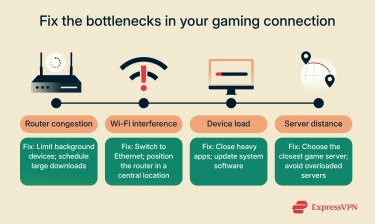
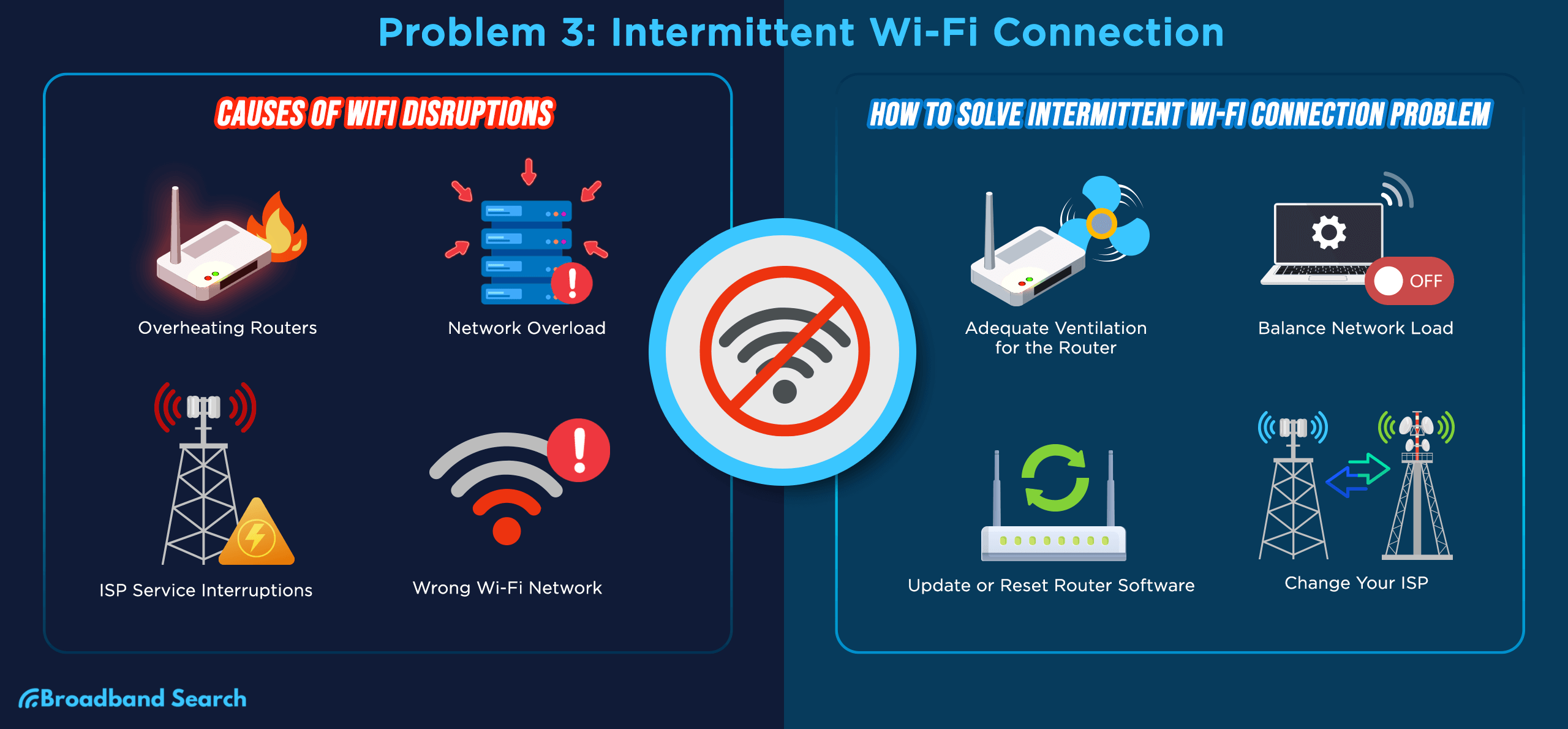
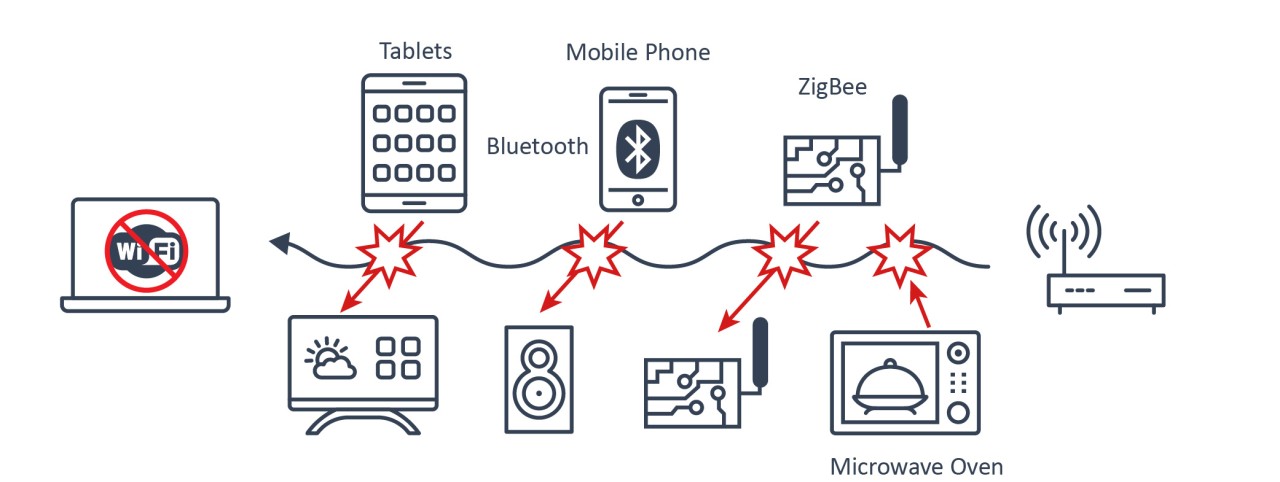
WiFi conflicts primarily arise from overlapping wireless channels, especially in dense residential areas where many routers operate. When multiple routers or devices broadcast on the same or adjacent frequencies, they create interference, making it difficult for your gaming device to efficiently send and receive data. This digital 'noise' leads to frustrating lag spikes, increased packet loss, and unstable connections, severely impacting your online gaming experience. Other contributing factors include physical obstructions, distance from the router, and network saturation from numerous connected devices.
How can I check if my WiFi is conflicting and affecting my games?
To check for WiFi conflicts, first, connect your gaming device directly to your router using an Ethernet cable. If your gaming performance significantly improves, it indicates your WiFi is the issue. Second, download a WiFi analyzer app (available on smartphones or PC) to scan your local environment. This app will show you the WiFi channels being used by your router and neighboring networks, helping you identify if your chosen channel is congested. High ping and packet loss during wireless gameplay, especially when others are on the network, are strong indicators of conflict.
What are the best router settings to minimize WiFi interference for gaming?
To minimize WiFi interference for gaming, access your router's settings and manually select a less congested WiFi channel. For the 2.4GHz band, channels 1, 6, or 11 are recommended as they are non-overlapping. On the 5GHz band, choose a channel with minimal neighbor usage. Enable Quality of Service (QoS) and prioritize your gaming device or specific game traffic. Ensure your router's firmware is up-to-date and, if supported, enable band steering to push devices to the faster 5GHz band, reducing congestion on the 2.4GHz band.
Does the number of devices connected to my WiFi impact gaming stability?
Yes, the number of devices connected to your WiFi significantly impacts gaming stability. Every active device, whether streaming, browsing, or updating, consumes bandwidth and processing power from your router. When too many devices are simultaneously demanding resources, your network becomes saturated. This congestion directly leads to increased latency, packet loss, and potential connection drops for your gaming sessions, as the router struggles to manage all the data traffic efficiently, making it challenging to maintain a smooth and responsive online experience.
What is the ideal WiFi band (2.4GHz or 5GHz) for competitive gaming?
For competitive gaming, the 5GHz WiFi band is generally ideal due to its higher speeds and less susceptibility to interference. The 5GHz band offers more non-overlapping channels and can handle more bandwidth, resulting in lower latency and more stable connections compared to the 2.4GHz band. While its range is shorter and it's less effective at penetrating walls, positioning your gaming device closer to the router and utilizing 5GHz provides a significant advantage for fast-paced online games where every millisecond counts.
Can an older router be a source of WiFi conflict affecting gaming?
An older router can absolutely be a source of WiFi conflict affecting gaming. Older routers often lack modern technologies like WiFi 6's OFDMA and MU-MIMO, which are designed for efficient handling of multiple devices and crowded network environments. They may also have weaker processors and less robust antennas, making them more prone to interference and less capable of maintaining stable, low-latency connections under load. Upgrading to a newer router that supports current WiFi standards can significantly reduce internal conflicts and improve overall gaming performance.
How can I prevent my smart home devices from interfering with my gaming WiFi?
To prevent smart home devices from interfering with your gaming WiFi, dedicate them to the 2.4GHz band if your router is dual-band, reserving the 5GHz band for your gaming device. Utilize your router's Quality of Service (QoS) settings to prioritize your gaming console or PC over smart home device traffic. Consider placing your smart home hub on a wired connection if possible to offload wireless traffic. If you have many devices, a router with WiFi 6 or 6E capabilities can manage them more efficiently, minimizing their impact on your gaming performance.
Ah, the classic gamer dilemma: You've finally carved out some precious time after a long day of work and family duties, ready to dive into a new world or dominate your favorite competitive title. You queue up, the match starts, and then... lag. Stuttering, missed shots, and sudden disconnects. It's enough to make anyone want to throw their controller across the room. If you've ever found yourself muttering, "can conflicting wifi affect gaming?" while staring at a frozen screen, you've hit on one of the most common, yet often overlooked, culprits behind poor online performance. You're not imagining it; conflicting WiFi signals can absolutely wreck your gaming experience.
For the average US gamer, around age 36, who dedicates 10+ hours a week to gaming, balancing that passion with life's responsibilities is key. Gaming is a valued escape, a way to relax, build skills, and connect with friends. Recent stats show 87% of US gamers play regularly, often engaging in cross-play across mobile, PC, and consoles. Social gaming, like teaming up in Valorant or exploring new worlds in Palworld, is huge. But a shaky internet connection turns fun into frustration. This guide is for you, the everyday hero balancing work and raids, looking for real solutions without the hype, to get back to enjoying your games on a stable connection.
What exactly is conflicting WiFi and how does it impact gaming?
Conflicting WiFi, often referred to as wireless interference, happens when multiple wireless signals in the same area compete for airtime on the same or overlapping channels. Think of it like trying to have a conversation in a crowded room where everyone is shouting. Your router and gaming device struggle to hear each other clearly, leading to corrupted data, retries, and delays. For gaming, this translates directly into higher latency (lag), increased packet loss (missing data), and frustrating connection drops. Even minor interference can cause noticeable stutters that cost you a critical moment in an online match.
How does WiFi channel overlap cause gaming lag?
WiFi signals operate on specific channels. In the 2.4GHz band, there are 11 channels in the US, but only three (1, 6, and 11) do not overlap, meaning they are completely distinct. If your router and your neighbor's router are both using, say, channel 6, they are effectively shouting over each other. This channel overlap creates significant interference. On the 5GHz band, there are more non-overlapping channels, making it generally less susceptible to this specific issue, but other forms of interference can still occur. When channels overlap, your gaming device has to work harder to filter out the noise, causing delays in data transmission and reception, directly leading to frustrating lag spikes and an inconsistent gaming experience.
Are older WiFi standards making my gaming worse?
Absolutely. If your router is still using older WiFi standards like 802.11n (WiFi 4) or even 802.11ac (WiFi 5) in a busy network environment, it could definitely be holding your gaming back. Newer standards like 802.11ax (WiFi 6) and 802.11be (WiFi 7, coming into prominence this month) are designed for efficiency and speed in crowded network conditions. WiFi 6, for instance, introduced OFDMA and MU-MIMO technologies, which allow a router to communicate with multiple devices simultaneously and more efficiently manage bandwidth. This means less congestion and better performance for your gaming, even when other devices are active. Upgrading your router and devices to WiFi 6 or 6E can significantly reduce the impact of internal network conflicts and improve overall gaming responsiveness.
Can too many devices on my network really hurt my game?
Yes, a saturated network with too many active devices can drastically impact your gaming. Each device connected to your WiFi, whether it's streaming 4K video, downloading updates, or simply sending background data, consumes bandwidth and processing power from your router. If your router is overwhelmed, it can't prioritize your gaming traffic efficiently, leading to congestion and slower response times for your game. Consider how many smart home devices, phones, tablets, and computers are simultaneously active in your home. This is especially true in the 2.4GHz band, which has less overall capacity. Many modern households have 10-20 devices, and that number is growing. Managing this traffic, even with newer WiFi standards, requires a strategic approach to maintain optimal gaming performance.
What are the best ways to diagnose WiFi conflicts for gaming?
Diagnosing WiFi conflicts involves a few key steps. First, use a WiFi analyzer app (available on smartphones or PCs) to scan your environment for channel usage. This will show you which channels are congested and help you pick a less crowded one for your router. Second, run speed tests and ping tests (e.g., to Google's DNS 8.8.8.8) while gaming and when the network is idle. Look for inconsistencies in ping latency and packet loss. Third, monitor your router's logs for any errors or dropped connections. Finally, temporarily disconnect non-essential devices from your network to see if performance improves. This process of elimination can help pinpoint whether the issue is internal network congestion or external interference.
How can I optimize my router settings to prevent WiFi interference?
Optimizing your router settings is one of the most effective ways to prevent WiFi interference. Here's how:
- Manual Channel Selection: After using a WiFi analyzer, manually set your router's 2.4GHz band to channels 1, 6, or 11 – these are non-overlapping. For the 5GHz band, choose a channel that fewer neighbors are using.
- Enable Quality of Service (QoS): Most modern routers have QoS settings. Enable this and prioritize your gaming device or specific game traffic. This tells your router to send game data first, even if other devices are busy.
- Update Firmware: Keep your router's firmware updated to ensure you have the latest performance enhancements and security fixes.
- Band Steering: If your router supports it, enable band steering to automatically move devices to the less congested 5GHz band when possible.
- WPA2/WPA3 Encryption: Ensure you're using WPA2 or WPA3 encryption for security and better performance over older WEP/WPA protocols.
Should I always choose a wired connection over WiFi for gaming?
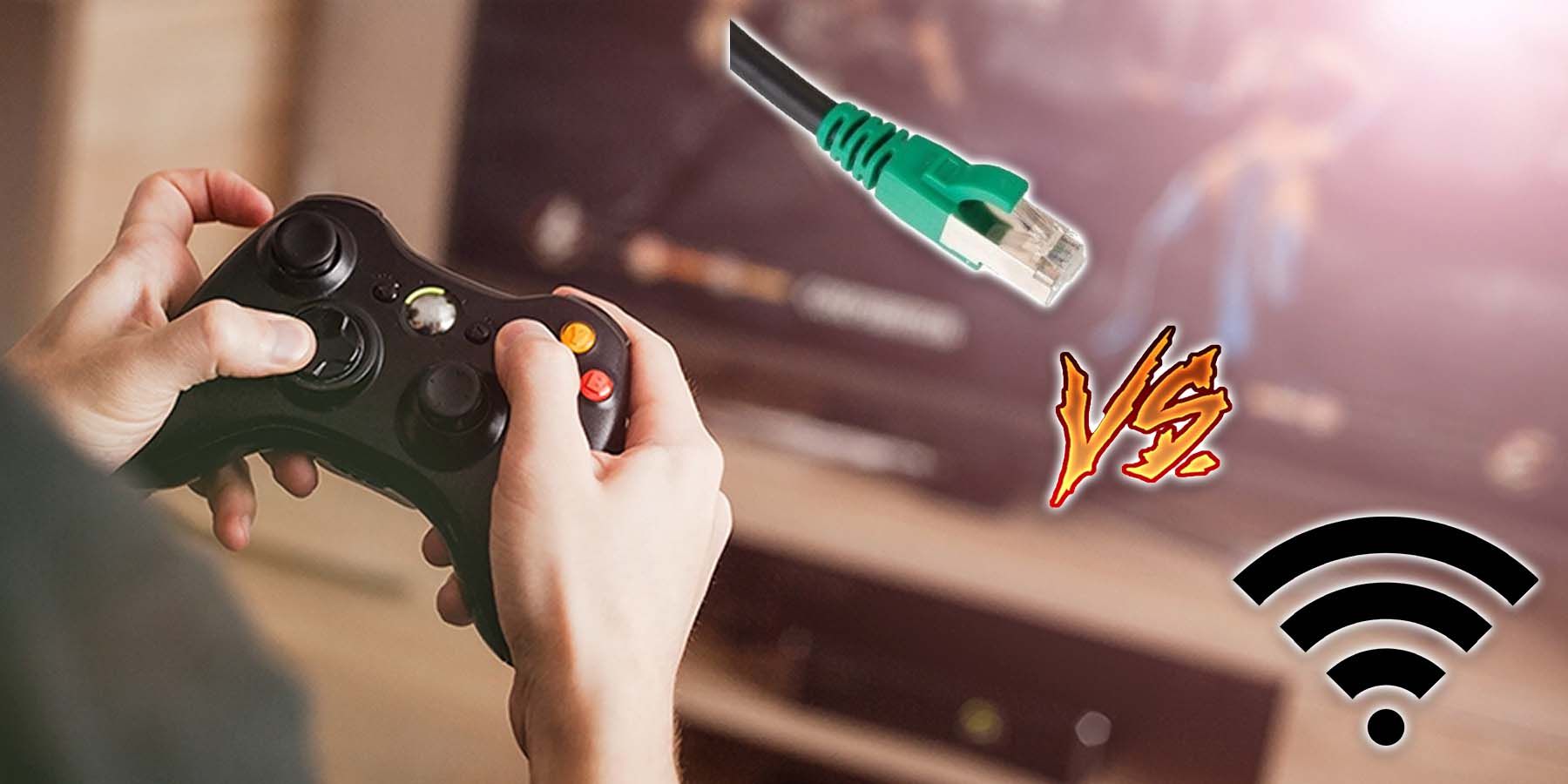
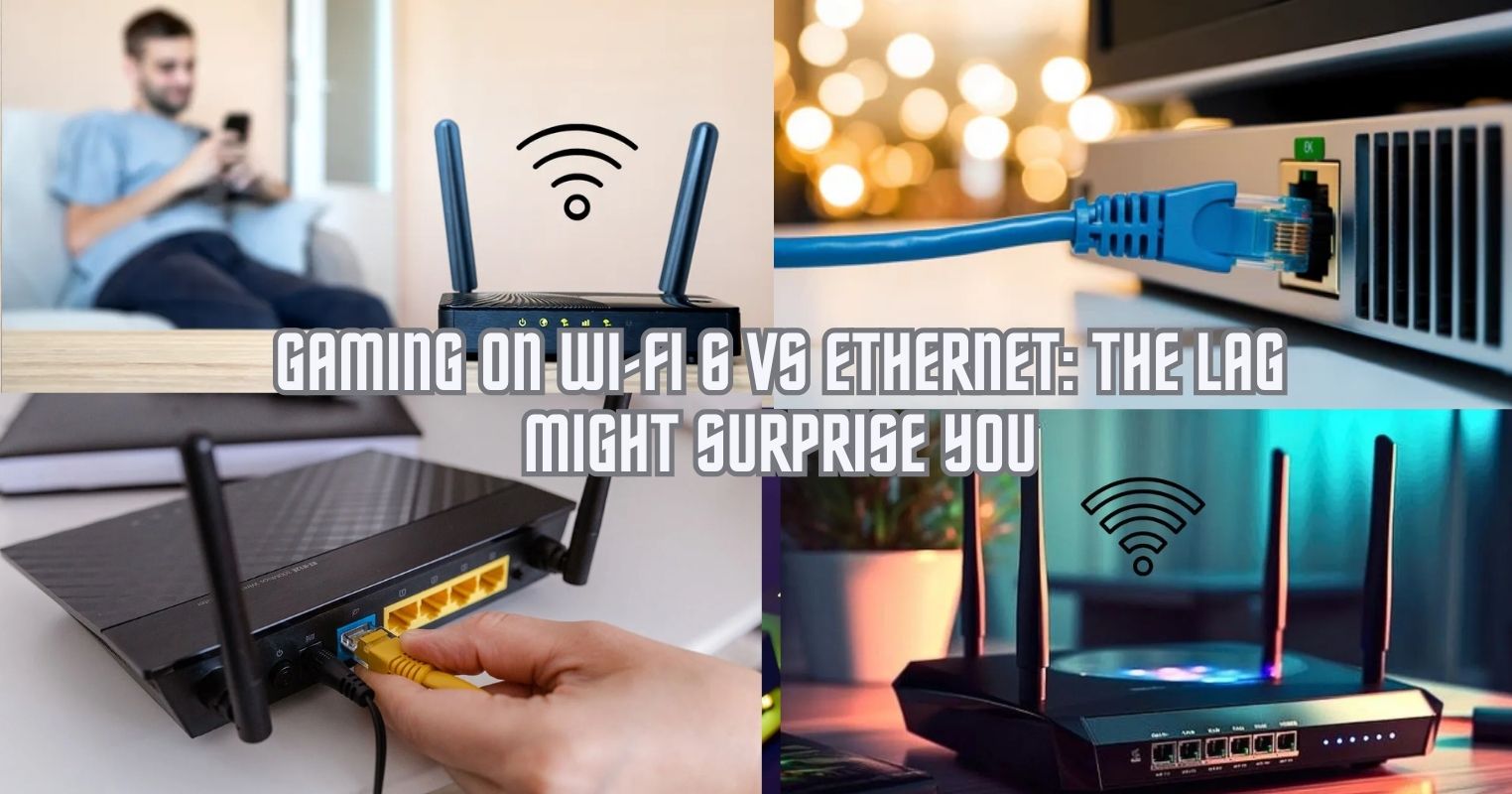
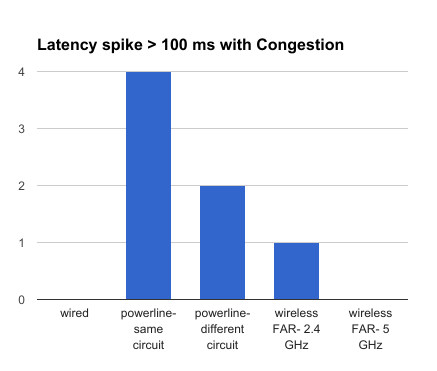
For competitive or performance-critical gaming, a wired Ethernet connection will almost always outperform WiFi. An Ethernet cable provides a direct, dedicated path for your data, bypassing the potential for wireless interference, signal degradation, and congestion that are inherent to WiFi. It offers consistently lower latency and virtually no packet loss, which are crucial for fast-paced online games where milliseconds matter. While WiFi 6 and 6E have significantly improved wireless stability, especially on the 5GHz and 6GHz bands, a direct cable remains the gold standard for reliability and speed. For casual gaming or mobile titles, WiFi is often perfectly adequate, but for the most stable experience, especially for PC and console gamers, going wired is the smart move.
What gear can help solve conflicting WiFi issues for serious gamers?
Upgrading your gear can make a massive difference. Here are key hardware solutions:
- WiFi 6 or 6E Router: These routers are designed to handle multiple devices more efficiently and offer a less congested 6GHz band with WiFi 6E, ideal for gaming.
- Powerline Adapters: If running an Ethernet cable isn't feasible, powerline adapters use your home's electrical wiring to create a wired network connection, offering a more stable alternative to WiFi in some cases.
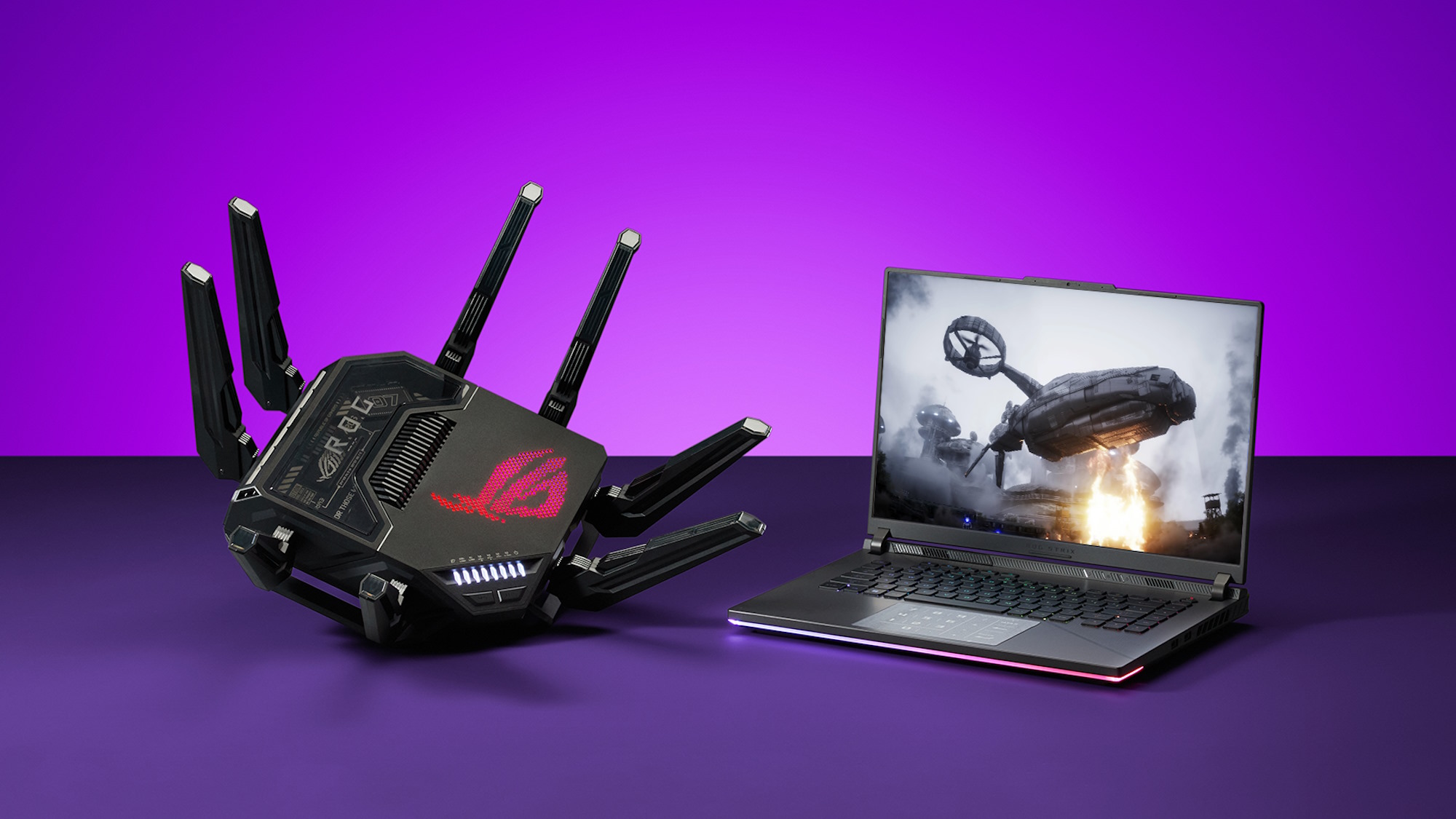
- Gaming-focused Router: Some routers are specifically designed for gaming, offering advanced QoS features, dedicated gaming ports, and lower latency processing.
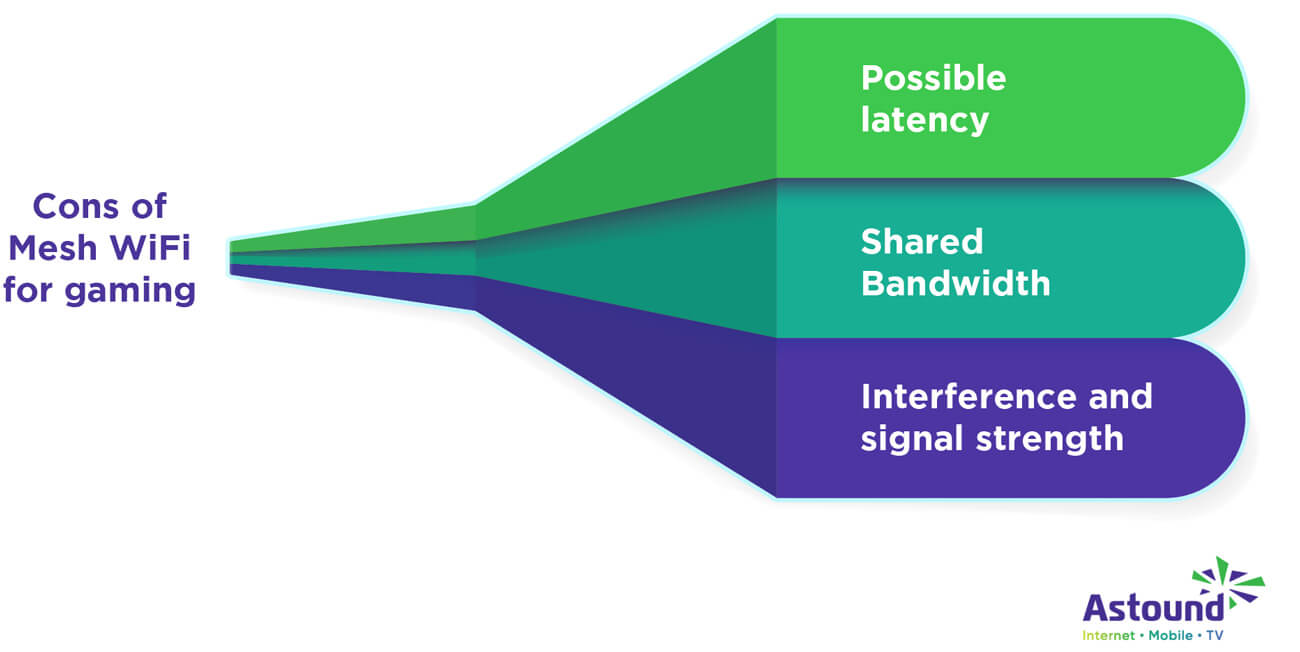
- Mesh WiFi System (with caution): While great for whole-home coverage, ensure your mesh system supports a dedicated backhaul channel (preferably wired) to avoid creating its own internal wireless conflicts and lag.
- High-Quality Ethernet Cables: If going wired, use Cat5e or Cat6 cables for optimal performance.
How do popular social games and streaming impact my WiFi stability?
Popular social games and streaming platforms demand significant and consistent network resources, which can heavily impact your WiFi stability. Games like Fortnite, Apex Legends, or even casual social experiences like Among Us rely on constant communication with servers. Simultaneously, if someone in your household is streaming on Twitch, watching 4K Netflix, or even just video conferencing on Discord, your available bandwidth gets stretched thin. The combined upstream and downstream traffic can quickly saturate your network, leading to bandwidth limitations, increased latency, and packet loss for your gaming session. Prioritizing gaming traffic via QoS, utilizing the 5GHz or 6GHz band, and even scheduling large downloads for off-peak hours can help maintain stability.
How can I balance a busy home network with my gaming time?
Balancing a busy home network with your gaming aspirations requires a proactive approach. Communication is key with family members; schedule your peak gaming times during periods of lower network activity if possible. Implement router-level Quality of Service (QoS) to prioritize your gaming device or specific game applications. Consider a dedicated gaming band if your router supports tri-band WiFi 6E. For truly critical gaming sessions, a direct Ethernet connection remains king. Educate your household on the impact of simultaneous heavy usage like 4K streaming or large downloads. With a little planning and smart router configuration, you can carve out a smooth, lag-free gaming experience even in a bustling digital home.
You've navigated the digital battlefield of conflicting WiFi and emerged with the knowledge to conquer network interference. From understanding channel overlap to leveraging the power of WiFi 6 and QoS, you now have the tools to ensure your gaming sessions are smooth, responsive, and truly enjoyable. Remember, your network setup is just as important as your gaming rig or console for a top-tier experience. Don't let a shaky connection be the reason you miss that headshot or fail that raid.
What's your biggest gaming network challenge right now? Comment below and share your experiences!
FAQ Section
Does 2.4GHz or 5GHz WiFi affect gaming more?
Generally, 2.4GHz WiFi is more susceptible to interference and congestion due to fewer non-overlapping channels and widespread use by various devices. 5GHz WiFi offers faster speeds and less interference, making it better for gaming, though its range is shorter.
Can my smart home devices cause gaming lag?
Yes, smart home devices, especially those constantly communicating with the internet or each other (like security cameras, smart speakers, or thermostats), consume bandwidth and can contribute to network congestion, potentially leading to gaming lag, particularly if your router is older or your network is saturated.
Is a mesh WiFi system good for gaming?
A mesh WiFi system can improve coverage throughout your home, which is good for general use. However, for serious gaming, it's crucial that the mesh system has a dedicated backhaul channel (preferably wired) to prevent latency issues and ensure gaming traffic is prioritized, otherwise, it might introduce more hops and potential lag.
How often should I restart my router for better gaming?
Restarting your router regularly, perhaps once a week or every few days, can help clear its memory, refresh network connections, and resolve minor performance glitches. This simple act can often improve overall network stability and reduce unexpected lag during gaming.
What is QoS and how does it help gaming?
QoS (Quality of Service) is a router feature that allows you to prioritize certain types of network traffic over others. By enabling QoS and setting your gaming device or specific game applications as high priority, your router ensures that game data is sent and received ahead of other traffic, minimizing lag and providing a smoother online gaming experience even on a busy network.
What's the optimal WiFi channel for lag-free gaming?
The optimal WiFi channel for lag-free gaming depends heavily on your local environment. For the 2.4GHz band, channels 1, 6, and 11 are non-overlapping and generally recommended. You should use a WiFi analyzer app to scan your area and choose the least congested of these three. For the 5GHz band, there are many more non-overlapping channels; again, a WiFi analyzer will show you which ones are least used by your neighbors, allowing you to pick a clear channel for better performance.
How do I identify if my gaming lag is truly due to WiFi conflicts?
To pinpoint if WiFi conflicts are causing your gaming lag, start by connecting your gaming device directly to your router with an Ethernet cable. If the lag disappears or significantly reduces, your WiFi is likely the culprit. Additionally, use a WiFi analyzer app to check for crowded channels and interference from neighboring networks. Running ping tests and monitoring packet loss on both wired and wireless connections can also reveal disparities that point to WiFi-related issues.
Can physical obstructions or distance worsen WiFi conflicts for gaming?
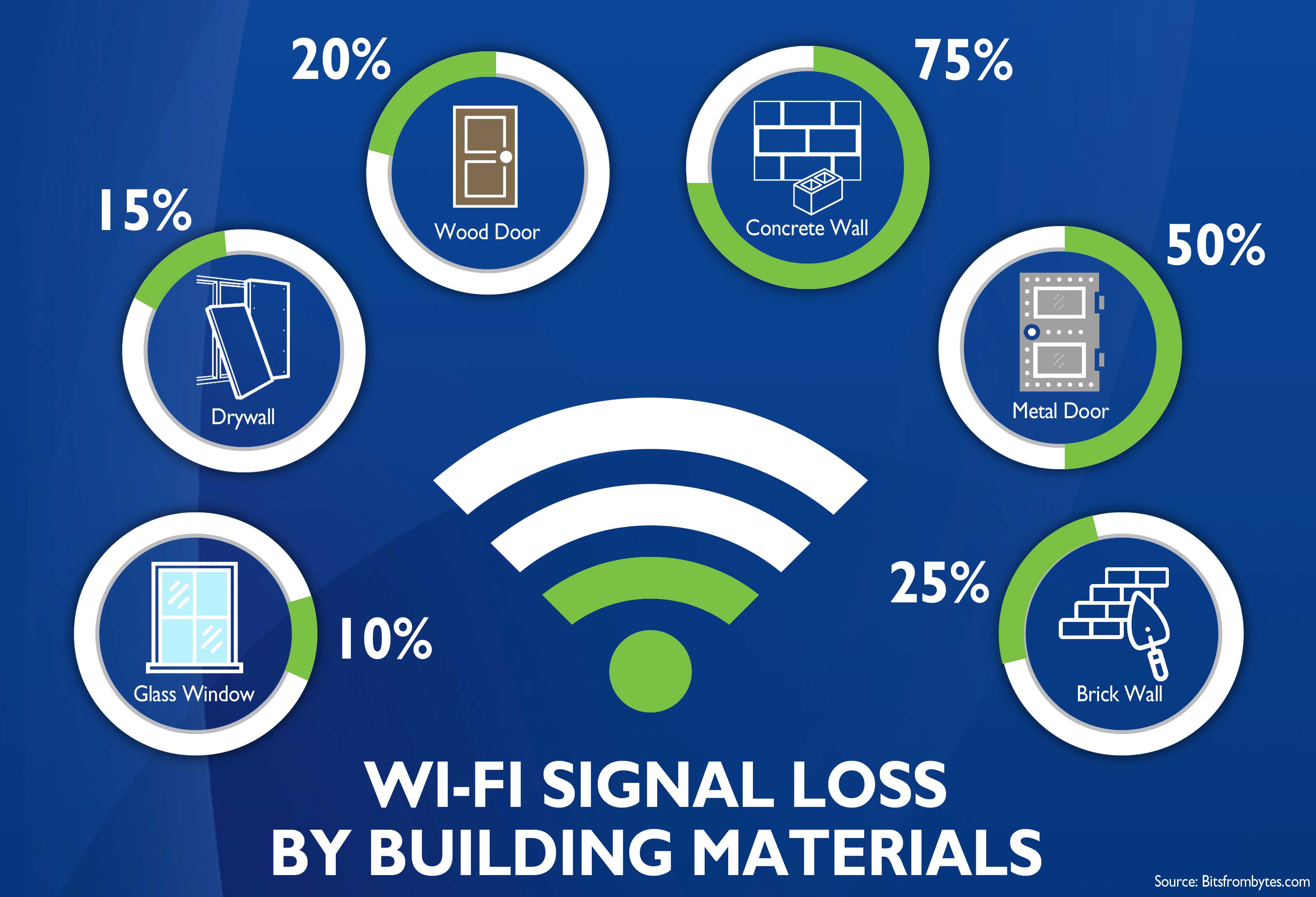
Yes, physical obstructions and distance significantly worsen WiFi conflicts and overall signal quality for gaming. Walls, floors, large appliances, and even furniture can absorb or reflect WiFi signals, weakening them and making them more susceptible to interference. The further your gaming device is from the router, the weaker the signal becomes, increasing the chance of packet loss and higher latency, especially when competing with other signals. Optimal placement of your router, away from obstructions and closer to your gaming area, is crucial.
What role does my Internet Service Provider ISP play in WiFi conflicts for gaming?
Your ISP plays an indirect but important role in WiFi conflicts. While they don't control your local WiFi environment, the quality and speed of the internet connection they provide set the baseline. If your ISP connection itself is slow or unreliable, even perfect WiFi won't fix gaming lag. Furthermore, if your ISP-provided router is older or has limited capabilities, it might struggle to handle multiple devices and advanced WiFi features, exacerbating internal network conflicts and making it harder to maintain a stable gaming connection.
Is a dual-band router enough to prevent conflicting WiFi affecting gaming?
A dual-band router (2.4GHz and 5GHz) is a good starting point, but whether it's 'enough' to prevent conflicting WiFi affecting gaming depends on your specific home environment and network usage. While the 5GHz band generally offers less interference and higher speeds, if it's heavily saturated with devices or experiences external interference, you could still face issues. For truly optimal gaming, especially in dense areas or homes with many connected devices, a tri-band router or one supporting WiFi 6/6E with dedicated gaming features might offer superior performance and conflict resolution.
How do I avoid external WiFi interference from neighbors during gaming?
Avoiding external WiFi interference from neighbors during gaming primarily involves optimizing your router's channel selection. Use a WiFi analyzer tool to identify which 2.4GHz channels (1, 6, 11) and 5GHz channels are least used by nearby networks. Manually set your router to one of these less congested channels. Additionally, ensure your router is positioned centrally and elevated to maximize its signal strength within your home, which can help it overcome weaker, conflicting signals from outside sources. Upgrading to WiFi 6 or 6E can also offer better interference mitigation.
Can I use an old router as an access point to improve gaming WiFi?
You can use an old router as an access point to extend your WiFi coverage, but it might not always improve gaming WiFi and could even introduce more conflicts if not configured correctly. If the old router only supports older WiFi standards or is poorly placed, it might create its own interference or a bottleneck. For gaming, ensure the access point is connected back to your main router via Ethernet (wired backhaul) for the best performance. This setup can provide a stronger signal closer to your gaming device without adding significant wireless overhead.
Conflicting WiFi causes significant gaming lag and disconnects. Channel overlap and device saturation are primary culprits. Optimizing router settings and understanding WiFi bands is crucial. Wired connections offer superior stability for competitive gaming. Upgrading to WiFi 6 or higher can mitigate issues. QoS settings prioritize game traffic effectively.
34

8 Ways To Reduce Input Lag For Gaming On PC Make Tech Easier Ethernet Vs Wifi Gaming. Top 5 Newest Wi Fi 7 Gaming Router In 2026 Reviews Buying Guide . Gaming On Ethernet Vs Wi Fi . The Best Gaming Routers In 2024 From ROG And ASUS . Mesh Vs Gaming Router Choosing The Best Setup For Zero Lag Mesh Wifi Gaming Challenges 1300x652 1

Gaming On Ethernet Vs Wi Fi . Gaming On Ethernet Vs Gaming On WiFi Image.axd. Gaming And Wi Fi Issues How Unstable Connections Affect Players WiFi Mobile Gaming.webp. Ethernet Vs WiFi What S Better For Gaming 8 1713870696 . The Best Satellite Internet Providers For Gaming G1 Gaming Net Connection


Ethernet Vs Wi Fi For Gaming Ultimate Guide 2024 Which Is Best Ethernet Vs Wifi For Gaming.webp. 150 Mbps Is Fast Enough For Gaming And Streaming But There Are Some Best Routers For Gaming . Best Gaming Routers Top Picks In 2026 T Gaming PC Guru Best Wifi Extenders For Gaming Featured 800x500 . Does WiFi LAN Gaming Affect The Internet Of Other Users 2 Solutions . Can Wifi Affect Fps At Christopher Laskey Blog Does Internet Affect FPS


How Bad Weather Can Affect Your WiFi Internet Connection Gaming Routers Vs Mesh Routers What Is A Better Choice Blog Image . Amazon Com WiFi Extender 2026 1800Mbps WiFi 6 Extender Signal Booster 15cf1375 3b55 4504 B6c8 PT0 SX1464 V1 . Wifi For Gaming What You Need To Know Wifi For Gaming What You Need To Know . What Internet Speed Is Recommended For Gaming G1 . Wind Vs WiFi Does Weather Affect Your Internet Connection Tech Does Weather Affect Your Internet Connection 1024x576


Internet Speed For Gaming How Fast Do You Really Need Internet Speed For Gaming 1 375x224 . Here S How Playing On Wi Fi Hurts Your Game PC Gamer 320 80 . Devices Having Trouble Connecting To Wifi At Keith Maxey Blog G3 Problem3 . Best Gaming Routers 2026 WiFi 7 WiFi 6E For Low Latency B08H8ZLKKK Customer 1 300x207 . Why Does My Wi Fi Keep When I Play Call Of Duty Black Ops Wifi Can Disrupt Call Of Duty




Best Gaming Routers 2026 WiFi 7 WiFi 6E For Low Latency B0DHWBS9G6 Customer 1 1024x389 . WiFi 7 Devices 2026 Hardware Wifi 7 Devices 2026 Compatible Hardware Banner.webp. WiFi Vs Internet Why Your Devices Don T Always Get Full Speed Ethernet Wifi Gaming Showdown 730x220. CCNP Wireless Is Back In 2026 Complete Guide CCNP Wireless Is Back In 2026 768x512 . Things That Can Affect Your Wi Fi Signal ImOn WiFi Loss By WEBSITE

Gaming On Wi Fi 6 Vs Ethernet The Lag Might Surprise You Tech4Gamers Error Fixes . Here S How Playing On Wi Fi Hurts Your Game PC Gamer . Timeless Gaming Convention WiFi Wars 2026 Tour 11 MAIN . Public Wi Fi Safety Trends 2026 G5 Dangers Of Public Wifi