Navigating the bustling world of Roblox to connect with friends can sometimes feel like a mini-quest itself. This comprehensive guide breaks down exactly how to join someone's game in Roblox, whether they're on PC, mobile, or console. Discover the simplest methods to jump into your friend's active session, troubleshoot common connection issues, and ensure your privacy settings are perfectly aligned for seamless social gaming. We'll cover everything from direct friend invites and following profiles to using the 'Join' button and understanding server capacities. For the millions of US gamers aged 20-45 who value social connection in their digital escapes, mastering this skill means more shared adventures, collaborative builds, and memorable moments. Stay ahead of the curve with 2026's best practices for Roblox social play. Learn insider tips to quickly find your squad and never miss a beat in your favorite experiences, making your gaming sessions effortless and fun.
Why can't I see the 'Join Game' button for my friend on Roblox?
If the 'Join Game' button is missing, it's usually due to your friend's privacy settings not allowing others to join them, or they might be in a private server you haven't been invited to. It could also mean the server they are in is full, or they're playing an experience that doesn't permit direct joins. Always ask your friend to check their 'Who can join me in games?' privacy setting first.
Can I join my friend's game if they are on Xbox and I'm on PC?
Yes, absolutely! Roblox fully supports cross-platform play. As long as both you and your friend have updated Roblox clients and your friend's privacy settings allow friends to join them, you can seamlessly connect whether you're on PC, mobile, or Xbox. Platform differences won't hinder your shared gaming experience.
What does it mean if a Roblox server is full, and how can I get in?
A 'full' server means it has reached its maximum player capacity. Unfortunately, Roblox doesn't have a built-in queuing system for public servers. Your best bet is to wait a few minutes and try clicking the 'Join Game' button again, hoping a spot opens up. Coordinating with your friend to see if someone is leaving can also help.
How do privacy settings affect joining friends in Roblox?
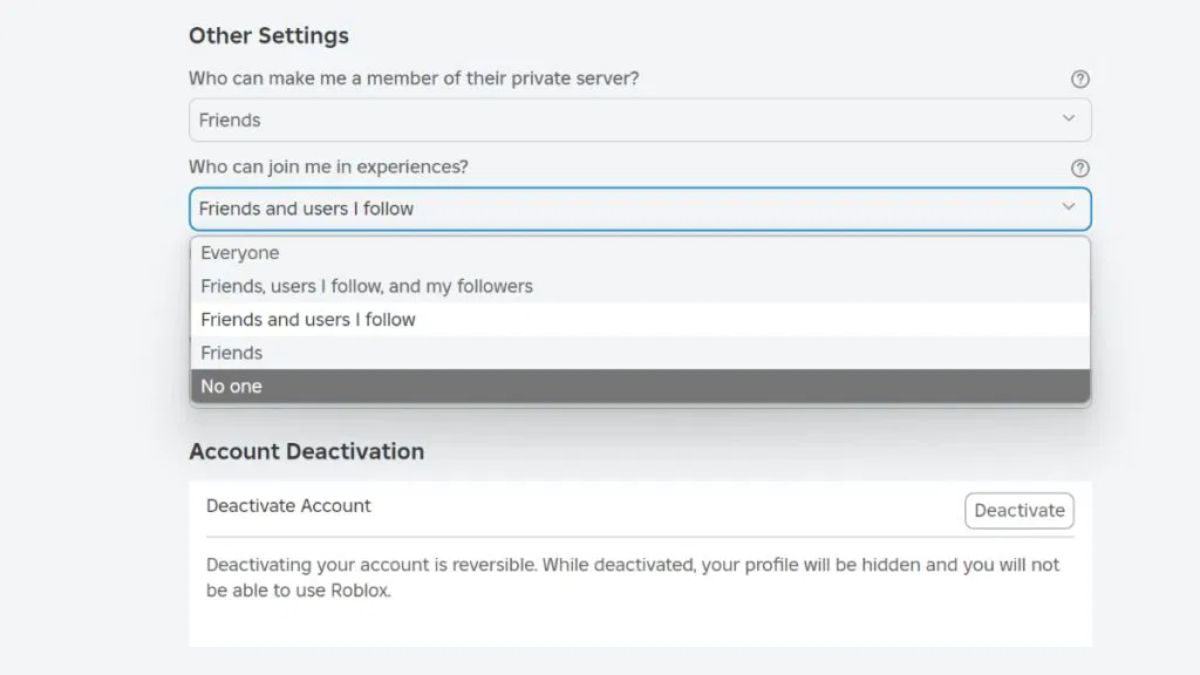
Privacy settings are crucial. The 'Who can join me in games?' setting directly controls whether the 'Join Game' button appears on your profile for others. If it's set to 'No One,' no one can join. If set to 'Friends,' only friends can join. For seamless play, your friend needs to set this to 'Friends' in their Roblox privacy settings.
Is there a way to join a specific private server in Roblox?
Yes, you can join a specific private server, but you need an invitation. The owner of the private server (which is usually purchased with Robux) must send you a direct invite through Roblox or provide you with a unique private server link. Once you receive and accept the invite or click the link, you'll be directed to that exclusive game instance.
My Roblox crashes when I try to join; what are the quick fixes?
Crashes during joining can indicate a few issues. First, ensure your Roblox client is fully updated. Second, try restarting your device and your internet router for a fresh connection. If issues persist, verifying your device meets the game's requirements or reinstalling Roblox might resolve corrupted files. Sometimes, specific games are more demanding and can cause crashes on older hardware.
Can I join a random player's game if we're not friends?
Typically, no, you cannot directly 'Join Game' from a random player's profile if you are not friends. The 'Join Game' button usually only appears for friends. However, you can join a public server of a game they are currently in by navigating to that game's page and browsing the active servers. You might find them there, but direct joining requires friendship or specific privacy settings.
Ever felt that familiar pang of frustration when your friend messages you, "Hey, jump into this awesome Roblox game I'm playing!" and you're left staring at your screen wondering, "how to join someone's game in Roblox?" You’re not alone. In 2026, with over 87% of US adults now identifying as gamers, and social gaming trends skyrocketing, connecting with your crew in virtual worlds like Roblox is more crucial than ever. For many busy adults aged 20-45, gaming isn’t just about solo adventures; it’s a vital way to unwind, socialize, and connect with friends after a long day. Roblox, with its immense variety of experiences, is a prime spot for this, but sometimes the 'how-to' isn't as straightforward as it seems. This guide is your trusted friend, here to cut through the noise and show you exactly how to join your friends’ games, ensuring you spend less time searching and more time gaming.
We’ve all been there – navigating menus, checking profiles, and still not seeing that elusive "Join" button. This month, social features are at the forefront of gaming, and Roblox continuously updates its platform to make connecting easier. However, understanding the nuances of privacy settings, platform differences, and potential roadblocks is key. Let’s dive into the practical solutions for seamlessly joining someone's game in Roblox, no matter if you're on your PC, smartphone, or console. Get ready to sync up with your squad and jump into the fun!
How to Join Someone's Game in Roblox Directly from Their Profile?
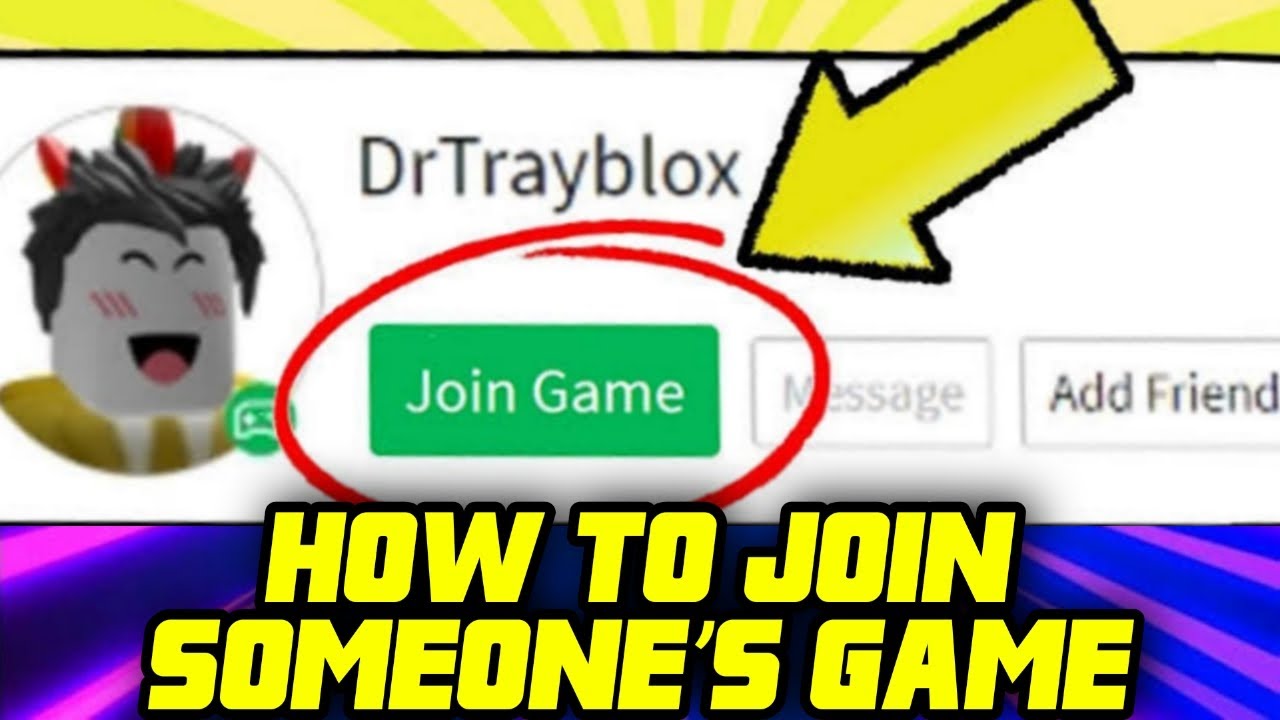
The most common and often easiest way to join someone's game in Roblox is directly through their profile page. This method works best if you are already friends with the person you want to join. When your friend is playing a public game or a game that allows friends to join, a prominent "Join Game" button will appear on their profile. This is the first place you should check when you want to know how to join someone's game in Roblox quickly.
Here’s a step-by-step guide:
- Step 1: Open Roblox. Launch the Roblox application on your PC, mobile device, or console.
- Step 2: Navigate to Friends. On the left-hand navigation bar (PC) or bottom menu (Mobile), click on the "Friends" icon.
- Step 3: Find Your Friend. Locate the friend you wish to join. They should appear in your friends list. If they are online and currently playing a game that allows joining, you'll often see a green icon or an indication that they are "In-Game."
- Step 4: Visit Their Profile. Click on your friend’s name or avatar to go to their profile page.
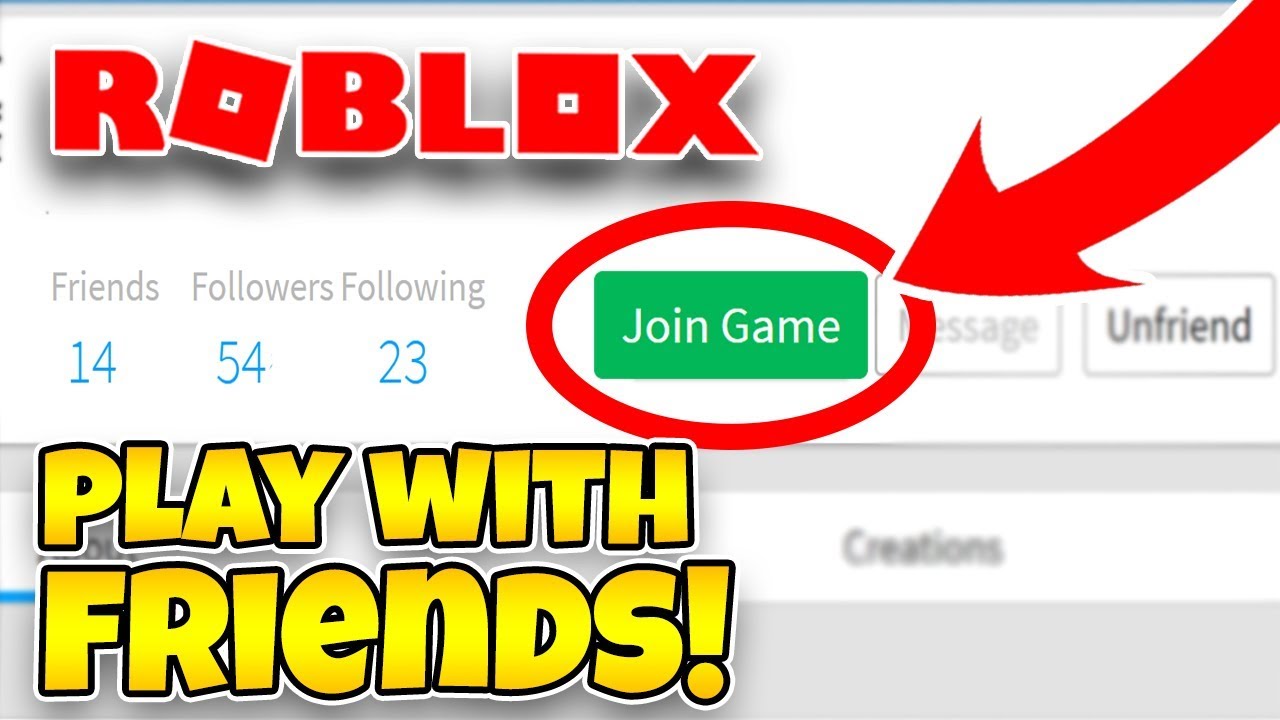
- Step 5: Click "Join Game". If they are in a joinable game, you will see a large, green "Join Game" button prominently displayed on their profile. Simply click this button, and Roblox will attempt to launch you into their server.
It's important to note that the visibility of the "Join Game" button depends on your friend's privacy settings and the specific game they are playing. Some games might be private or have specific joining conditions, which brings us to our next points.
Why Can't I Join My Friend's Game in Roblox? Troubleshooting Common Issues.
It can be frustrating when the "Join Game" button is missing or doesn't work. Many factors can prevent you from joining a friend's game. Understanding these can help you troubleshoot and get into the action faster. This is a crucial part of understanding how to join someone's game in Roblox effectively, especially for adult gamers who just want to unwind.
Here are the most common reasons and their solutions:
- Friend's Privacy Settings:
- Problem: Your friend has set their privacy settings to "Who can join me in games?" to "No One" or "Friends I Follow."
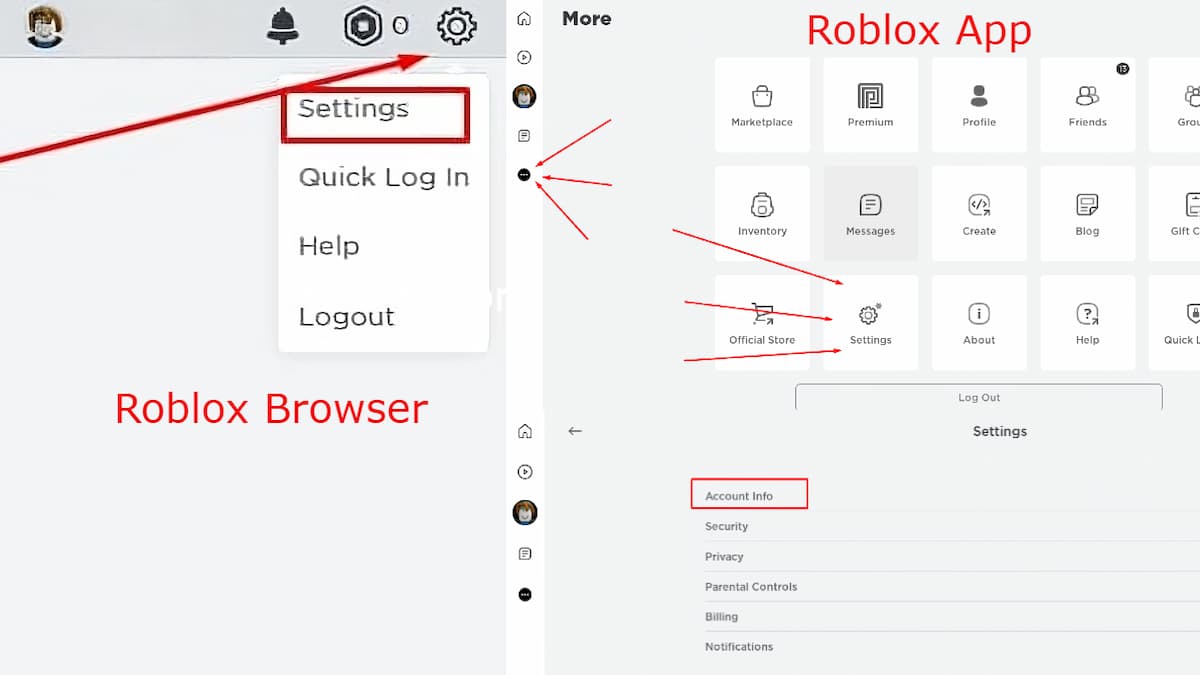
- Solution: Ask your friend to adjust their settings. They need to go to "Settings" > "Privacy" and ensure "Who can join me in games?" is set to "Friends."
- Game Server Full:
- Problem: The specific server your friend is on is at its maximum player capacity.
- Solution: Wait a few minutes and try again. Sometimes, a slot opens up. Alternatively, your friend might be able to leave and rejoin a new server if they want you to join them. Some games display the server capacity, allowing you to gauge your chances.
- Friend is in a Private Server Without an Invite:
- Problem: Your friend is playing in a private VIP server that you haven't been invited to.
- Solution: Your friend must send you a direct invitation to the private server, or provide you with the server link/code if available for that specific experience.
- Friend is in a Different Experience/Platform:
- Problem: While Roblox offers cross-platform play, sometimes there can be slight delays or specific game versions that are platform-locked (rare, but possible).
- Solution: Confirm with your friend which specific "experience" (game) they are in and on which platform. Ensure your Roblox client is updated to the latest version.
- Roblox Client or Internet Issues:
- Problem: Your Roblox client might be outdated, corrupted, or your internet connection is unstable.
- Solution: Restart your Roblox application or browser. Check your internet connection. A quick router reset can sometimes work wonders. For PC, ensure your Roblox client is fully updated.
Who Can I Join in Roblox, Beyond My Direct Friends?
While joining direct friends is the primary focus of how to join someone's game in Roblox, there are other scenarios where you might want to connect with other players or specific experiences. Understanding these options expands your social gaming possibilities.
- Joining Followers (If Settings Allow): If your privacy settings are set to allow followers to join you, then anyone who follows your profile might be able to join your game, even if they aren't your direct friend. Similarly, you might be able to join players you follow if their settings permit.
- Joining Through Public Server Lists: Many popular games have a "Servers" tab on their experience page. Here, you can see a list of active public servers, their player counts, and sometimes even which friends are already in them. While you can't always pick a specific server with a friend (unless you see them listed), it's a way to jump into the same game generally.
- Joining Via Group Games: If a game is owned by a group you and your friend are both members of, sometimes there are group-specific servers or methods to join.
- Joining Through Game Hubs or Portals: Some large experiences act as "hubs" with portals to other sub-experiences. If your friend is in such a hub, you might join the hub and then find the same portal.
The flexibility of Roblox’s social system caters to various playstyles, from intimate friend groups to larger community interactions. This month, social interaction is a huge driver for engagement, with trends showing that US gamers, particularly those in the 20-45 age bracket, often spend upwards of 10 hours a week in games that facilitate social connection, demonstrating the power of these shared virtual spaces.
Where Do I Find the "Join Game" Button on Different Platforms (PC, Mobile, Console)?
The "Join Game" button's exact location and appearance can vary slightly depending on whether you're playing Roblox on a PC, a mobile device (iOS/Android), or a console (Xbox). Knowing these distinctions is key to understanding how to join someone's game in Roblox efficiently across devices.
On PC/Mac (Desktop Application or Browser):
The experience is fairly consistent across PC and Mac. After logging into your account:
- Friends List: Click on "Friends" in the left navigation bar. Friends currently in-game often show a small green icon and "In-Game." Clicking their name takes you to their profile.
- Profile Page: On your friend's profile page, look for the prominent green "Join Game" button situated near their avatar and status.
- Experience Page (Servers Tab): If your friend is in a popular game, go to that game's main page. Scroll down to the "Servers" tab. You might see a server where your friend is currently playing, with a "Join" button next to it.
On Mobile (iOS/Android App):
The Roblox mobile app is streamlined for touch interaction:
- Friends Icon: Tap the "Friends" icon at the bottom of the screen.
- Find Friend: Scroll through your friends list or use the search bar. Friends in-game will have an "In-Game" status.
- Profile Page: Tap on your friend’s avatar or name. On their profile, the "Join Game" button will be clearly visible.
- Experience Page (Servers): For some games, you can navigate to the game's page, scroll down, and look for a "Servers" section where you might find your friend's active server.
On Console (Xbox):
Joining friends on Xbox has a slightly different flow, integrating with the console's native social features:
- Roblox Game Hub: Launch Roblox on your Xbox.
- Friends Tab: From the main Roblox menu on Xbox, navigate to the "Friends" tab.
- Find Friend: Select the friend you want to join. If they are in a joinable game, you will see an option to "Join Game."
- Xbox Guide Button: You can also sometimes use the Xbox Guide button (the glowing Xbox logo on your controller) to see your friends list. If a friend is playing Roblox and their settings allow, you might see an option to "Join Game" directly from the Xbox system menu.
Cross-play is robust in Roblox, meaning a PC player can join an Xbox player, and vice-versa, provided the game supports it and privacy settings are correct. This flexibility is a huge win for social gamers, especially the 87% of US gamers who engage in multiplayer experiences, making Roblox a prime hub for digital meetups.
When Is the Best Time to Join a Game, and Are There Server Considerations?
While you can attempt to join a game at any time, understanding server dynamics and current trends can optimize your experience, especially when dealing with the core question of how to join someone's game in Roblox. For adults who game to unwind, minimizing wait times and frustration is key.
- Peak Hours vs. Off-Peak Hours: During peak hours (evenings and weekends in the US), servers for popular games can fill up rapidly. If you're struggling to join a friend, trying during off-peak hours (late morning or early afternoon on weekdays) might offer better success rates due to lower player counts.
- Server Capacity: Every Roblox server has a maximum player capacity, typically ranging from 10 to 50 players, though some experiences can support more. If a server is full, you simply cannot join until a slot opens up. There's no queuing system for public servers.
- "Friends Only" Servers: Some game developers create special "Friends Only" servers which allow friends to join more easily without battling public server queues. If a game offers this, it's often the most reliable way to connect.
- Game Updates This Month: Keep an eye on game updates. Major updates can sometimes cause temporary server instability or new server configurations that might affect joining for a brief period. Roblox generally rolls out updates seamlessly, but individual game updates can vary.
Being aware of these factors helps set expectations and encourages strategic joining attempts, turning potential frustration into savvy gameplay. Social gaming trends this month highlight seamless entry as a top priority for players, reinforcing the importance of these tips.
Is There a Way to Join Private Roblox Servers, and How Do Invites Work?
Yes, joining private servers (often called VIP servers or Private Experiences) is a distinct way to connect with friends, offering a more controlled and often lag-free environment. This is a special consideration when learning how to join someone's game in Roblox for exclusive play sessions.
- What are Private Servers?: Private servers are instances of a game that can be purchased (usually with Robux) by a player. The owner then has control over who can access it, typically through invitations.
- How to Get an Invite: Your friend, who owns or has access to manage the private server, must explicitly invite you.
- Direct Invite: They can invite you directly through the Roblox platform, often via a specific "Invite" button within the private server's settings or the game interface itself. This usually sends a notification to you.
- Private Server Link: The server owner can generate a unique link to the private server and share it with you (e.g., via Discord, chat, or another messaging app). Clicking this link will attempt to launch you into that specific private server.
- Password/Access Code (Less Common): Some games might implement their own password or access code system for private instances, though this is less common for standard Roblox private servers.
- Accepting an Invite: When you receive a direct invite within Roblox, it often appears as a notification. Clicking on this notification will typically take you directly to the private server. If you receive a link, simply clicking it will initiate the join process.
Private servers are excellent for focused gameplay, competitive practice, or just hanging out with a select group of friends without public interruptions. Many adult gamers leverage private servers for a more intimate and controlled social gaming experience, aligning with the trend of personalized digital spaces.
Tips for a Smooth and Consistent Roblox Joining Experience.
To ensure you rarely run into issues when trying to figure out how to join someone's game in Roblox, here are some proactive tips that go beyond just clicking a button. These insights are particularly valuable for busy adults who want their gaming time to be as frictionless as possible.
- Manage Your Friends List: Keep your friends list up-to-date. Remove inactive friends to make finding active players easier.
- Communicate with Your Friends: The simplest solution is often to just ask! A quick message like "Hey, can you make sure your privacy settings allow friends to join?" or "Is your server full?" can save a lot of guesswork. Discord, a popular platform for US gamers, is excellent for this real-time communication.
- Regularly Check Roblox Privacy Settings:
- Go to Settings > Privacy.
- Ensure "Who can join me in games?" is set to "Friends."
- Check "Who can make me a friend?" and "Who can message me?" to control your social circle.
- Keep Your Roblox Client Updated: Always ensure you are running the latest version of the Roblox application. Updates often include bug fixes and performance improvements that can affect joining functionality.
- Stable Internet Connection: A strong, stable internet connection is paramount. Lag or disconnections can prevent successful joins or cause you to be dropped from a game immediately after joining. Consider an Ethernet connection for PC/console if possible, especially during competitive play.
- Understand Game-Specific Rules: Some Roblox experiences have unique joining mechanics or restrictions. For instance, an age-gated game might prevent younger players from joining older friends, or a role-play game might require specific character creation before entry. Briefly check the game's description if you're repeatedly having trouble with a particular experience.
By implementing these practices, you're not just learning how to join someone's game in Roblox; you're building a foundation for consistent, enjoyable social gaming experiences, which is a major draw for the millions of US gamers who value digital connections.
Frequently Asked Questions About Joining Games in Roblox
Who needs to adjust their settings for me to join them in Roblox?
The person whose game you are trying to join needs to have their privacy settings configured correctly. Specifically, they must ensure that "Who can join me in games?" is set to "Friends" or "Friends I Follow" under their Roblox privacy settings. Without this, the "Join Game" button will not appear on their profile for you.
Why does the "Join Game" button sometimes disappear or not show up?
Several reasons can cause the "Join Game" button to be absent. Your friend might be in a private server without inviting you, their privacy settings might restrict joins, the server they are on could be full, or they might be playing an experience that does not allow friends to join directly. Always check these factors first.
Can I join a friend's game if we are on different platforms (e.g., PC and Mobile)?
Yes, absolutely! Roblox is designed for cross-platform play. A PC player can join a mobile player, an Xbox player can join a PC player, and so on. As long as both players have updated Roblox clients, compatible devices, and the friend's privacy settings allow, platform differences won't prevent you from connecting.
What if my friend is in a private server I paid for?
If your friend owns a private server, they must explicitly invite you to it. They can send an in-game invite, or for many private servers, generate a unique link that they can share with you. Simply clicking that link will allow you to enter their private instance of the game.
Is there a way to queue for a full server to join a friend?
Unfortunately, Roblox does not currently have an official queuing system for public servers. If a server is full, you'll need to wait for a slot to open up and try joining again. Some players repeatedly click the "Join" button in hopes of catching an open spot, or communicate with their friend to see if someone else is leaving.
How can I find out if a game has special joining requirements?
Most games list their general requirements or unique mechanics in their description on the experience page. If a game has specific age restrictions, specific entry items, or a unique joining system (like needing to be in a certain group), this information is usually provided there. Always check the game's details if you're consistently having trouble.
My game crashes when I try to join a friend. What should I do?
Game crashes during joining can indicate a few issues. First, ensure your Roblox client is fully updated. Second, check your device's specifications to make sure it meets the game's requirements; some experiences are more demanding. Third, a stable internet connection is crucial. Try restarting your device and router, and if problems persist, reinstalling Roblox can sometimes resolve corrupted files.
Can I join a game if I am not friends with the player?
Generally, you cannot directly "Join Game" from a player's profile if you are not friends with them. However, if their privacy settings allow "Who can join me in games?" to "Everyone" (which is rare), or if you follow them and their settings allow followers, you might. The more common way is to join a public server of a game they are in, and then potentially meet them there, but direct joining typically requires friendship.
What if I'm blocked by my friend? Can I still join their game?
No, if you are blocked by a friend on Roblox, you will not be able to join their game, see their online status, or interact with them in any way. Blocking severs all direct social connections on the platform.
Are there any security concerns when joining random servers?
While joining random public servers is generally safe within Roblox's platform, always be mindful of who you interact with. Avoid sharing personal information, be wary of suspicious links or offers, and report any inappropriate behavior. Roblox has robust reporting tools, and staying safe online is always a top priority for responsible gamers.
How do I invite someone to join my game?
If you're in a game, you can usually invite friends to join you. On PC, look for a "Friends" or "Invite" button within the in-game menu (often accessed by pressing Esc). On mobile, there's usually an invite button on the in-game menu. Clicking this will let you select friends from your list to send an invitation to your current server.
What are the implications of setting "Who can join me in games?" to "Everyone"?
Setting "Who can join me in games?" to "Everyone" means anyone, friend or not, can potentially see the "Join Game" button on your profile and attempt to join your server. While this makes you highly accessible, it also reduces your privacy and control over who enters your game sessions. It's generally recommended for streamers or content creators who want maximum visibility, but for average players, "Friends" or "No One" offers more control.
There you have it! A comprehensive guide to mastering the art of "how to join someone's game in Roblox." With these tips, you're well-equipped to navigate the social landscape of Roblox and ensure your gaming sessions are filled with more fun and less frustration. In a world where 87% of US gamers value social connection, knowing these tricks is more valuable than ever. Stay connected, game on!
Internal Link Suggestions:
- How to Optimize Roblox Performance for PC and Mobile
- Understanding Roblox Privacy Settings: A Complete Guide
- The Best Free-to-Play Roblox Games for Adults This Month
External Link Suggestions:
- Roblox Official Support Page: Joining Games
- Discord: The Gamer's Communication Hub
- Latest US Gaming Industry Trends (e.g., from ESA or Newzoo)
Meta Title Idea: How to Join Someone's Game in Roblox 2026 Guide | Fast Friend Joins
Meta Description Idea: Master how to join someone's game in Roblox on PC, mobile, & Xbox. This 2026 guide covers privacy, troubleshooting, and fast friend joins for seamless social gaming. Get in the game now!
Image Alt Text Recommendations:
- "Roblox friends list with green 'In-Game' status and 'Join Game' button."
- "Screenshot of Roblox privacy settings menu showing 'Who can join me in games' option."
- "Gamer on a mobile phone tapping 'Join Game' button in Roblox."
- "Roblox avatar standing next to a portal with text 'Join Friend Here'."
Did this guide help you connect with your friends? Let us know in the comments below, share your best joining tips, or sign up for our newsletter for more 2026 gaming insights!
Direct Join Method, Following Friends, Privacy Settings, Server Full Solutions, Cross-Platform Joining, Troubleshooting Connections, Instant Play Tips, Roblox Friends List Use, Private Server Invites
34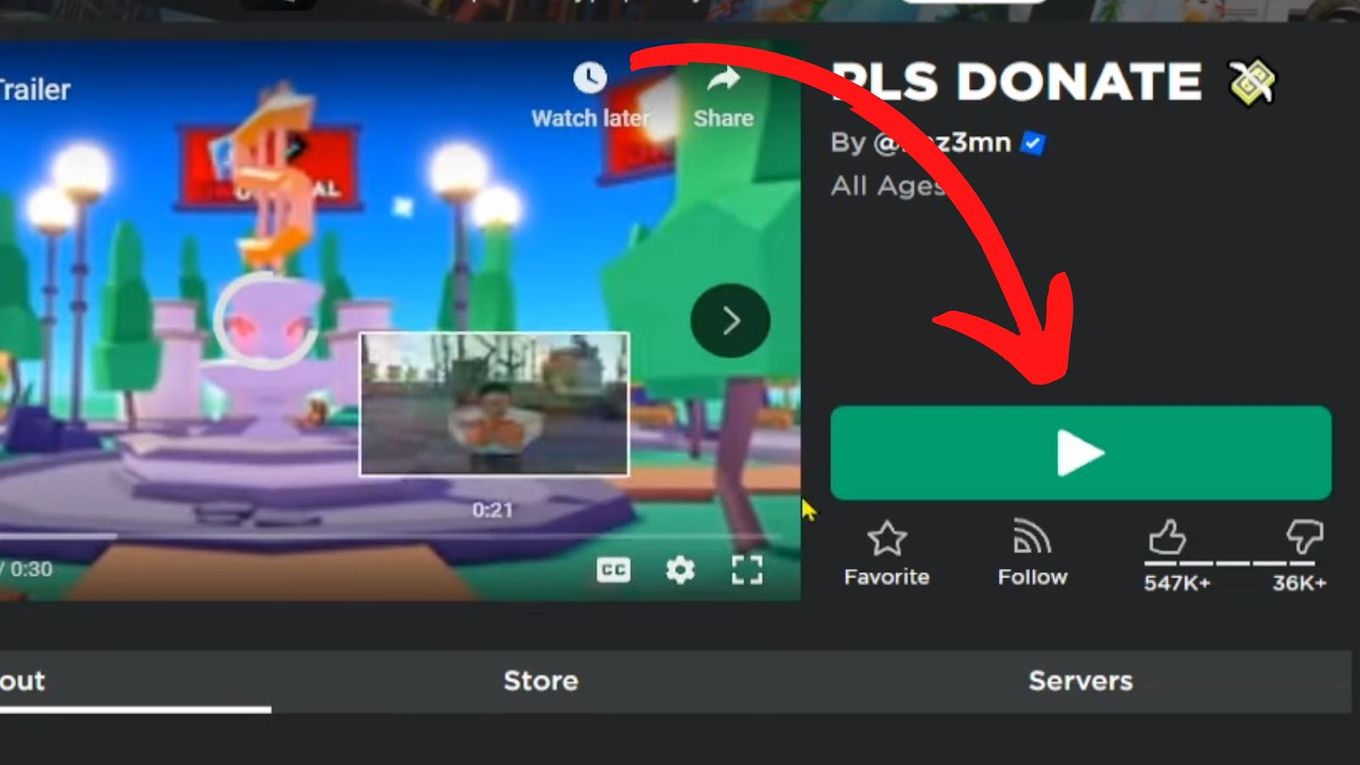


How To Join Roblox Players Seamlessly A 2026 Guide Join Other Roblox Game . HOW TO PLAY ROBLOX WITH YOUR FRIENDS Roblox How To Join Anyone . Roblox Joins On How To Enable Them In 2026 Appear Offline On Roblox Step 13 . How To Join Anyone On Roblox Join Someone Without Being Friends . How To Join A Group On Roblox In 2026 Roblox Database Join Group Roblox




Roblox Privacy How To Turn Off Joins In Roblox . How To Join A Group In Roblox Full Guide YouTube . How Do I Allow Specific People To Join My Roblox Game YouTube . Roblox Joins On How To Enable Them In 2026 . Joining Roblox Groups Your Easy Guide 3 Leave Group


Roblox Privacy How To Turn Off Joins In Roblox . Level Up Join Roblox Groups Like A Pro How To Join A Group In Roblox Learn Everything You Need To Know.webp. Why Can T I Play Roblox . I Joined ROBLOX S Game YouTube . How To Join A Multiplayer Game In Roblox EXCELLENT TUTORIAL YouTube


How Do I Find Someone On Roblox In 2026 A Quick Guide Join Someone Joins Off Roblox 7edit . How To Add Someone To Team Create In Roblox Studio 2026 Invite . How To Gift Robux In Roblox For 2026 Your Ultimate Guide Give Someone Robux Step 37 . Read Description How To MAKE A ROBLOX GAME WITH YOUR FRIENDS In 2021 . Roblox Privacy Stop Unwanted Joins 2025 Roblox 2 1


Roblox Privacy How To Turn Off Joins In Roblox . How To Join Roblox Players Seamlessly A 2026 Guide Roblox Press Image 1 . How Do I Find Someone On Roblox In 2026 A Quick Guide Follow People On Roblox . Roblox Privacy How To Turn Off Joins In Roblox . How To Join Someone With Their Joins Off Roblox Join Someone On

How To PM On Roblox Your 2026 Guide To Direct Messaging Dc16406f 9d07 44f6 B2a3. HOW TO JOIN SOMEONE S GAME IN ROBLOX WITHOUT BEING THEIR FRIEND YouTube . Roblox Game Joiner Extension At Linda Redmon Blog . How Can You Play Roblox In 2026 And Beyond How To Play Roblox . How To Join Someone On Roblox Without Being Friends 2024 Guide Join


How Do I Find Someone On Roblox In 2026 A Quick Guide Roblox How To Get To Settings . How To Invite Friends To A Game In Roblox New Way YouTube . How To CREATE And JOIN Parties On Roblox YouTube . How To Join A Group On ROBLOX In 2024 Step By Step Guide By CAPITAL R